Showing posts with label account. Show all posts
Showing posts with label account. Show all posts
Tuesday, February 3, 2015
Hard Reset your Star Mobile Engage 7 HD and remove password pattern lock and gmail account
A starmobile tablet came into my work station and made a tutorial on how to hard reset. The table is the Star Mobile 7 HD.
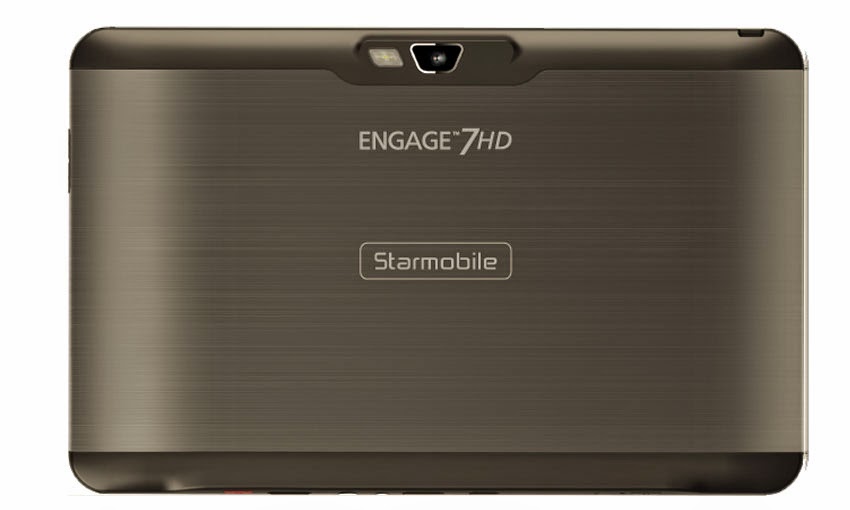
Hard resetting / factory resetting your phone will solve the following issues:
1. If you forgot your pattern lock
2. If you forgot your gmail account
3. If you forgot your password
4. Apps that automatically force closing
5. Stuck in StarMobile Logo (sometimes does not work if the firmware is totally damage)
NOTE: Performing hard reset will erase your data.
To hard reset:
1. Turn off your tablet.
2. Press and hold the POWER + VOLUME UP (left button when you are holding the tablet vertically and the camera is on the left side). Until you see the Android Robot, then release all buttons.
3. Select wipe / factory reset, press Volume UP to navigate and press VOLUME DOWN to confirm your selection
4. Reboot your phone.
I hope this tutorial helps you.. If you have any question just drop a comment.

Monday, February 2, 2015
Hard Reset your Cherry Mobile Flare S3 and remove password pattern lock and gmail account
Hey,
I have a Flare S3 phone and as I remember I still dont have a tutorial to hard reset this phone. Just check out the tutorial below.
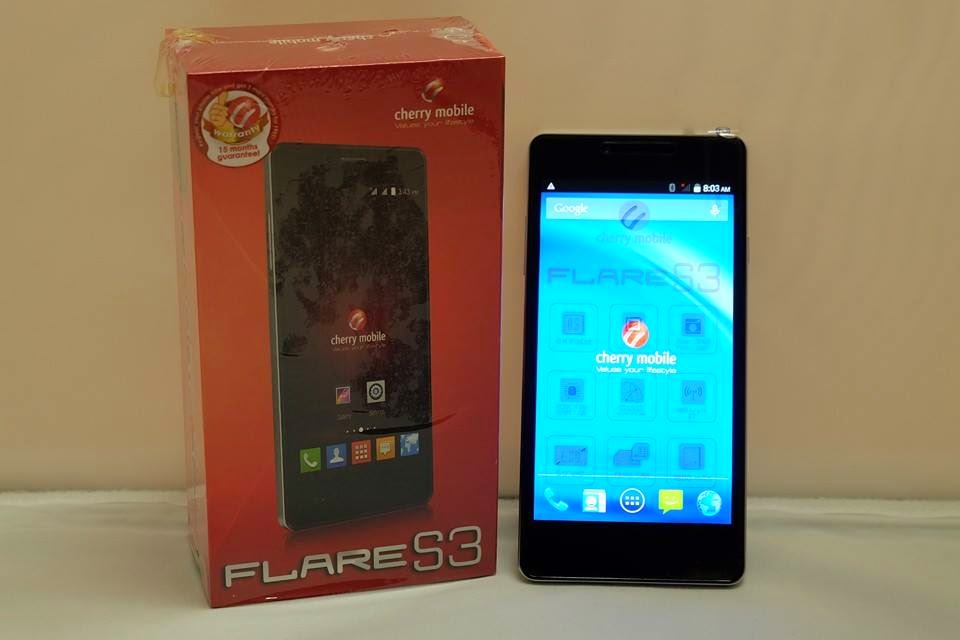
Hard resetting / factory resetting your phone will solve the following issues:
1. If you forgot your pattern lock
2. If you forgot your gmail account
3. If you forgot your password
4. Apps that automatically force closing
5. Stuck in Cherry Mobile Logo (sometimes does not work if the firmware is totally damage)
NOTE: Performing hard reset will erase your data.
To hard reset:
1. Turn off your phone.
2. Press and Hold VOLUME UP + Power button (for about 10 seconds). Keep pressing and holding until the phone power up and until you enter in Android System Recovery.
3. Select wipe data / factory reset. To navigate press the VOLUME ROCKER, to confirm your selection PRESS VOLUME UP
4. Reboot your phone.
Note:
If performing hard reset did not succeed, you need to wipe the cache first in the android system recovery before performing wipe / factory reset.
I hope this tutorial helps you.. If you have any question just drop a
comment.
Read more »
I have a Flare S3 phone and as I remember I still dont have a tutorial to hard reset this phone. Just check out the tutorial below.
Hard resetting / factory resetting your phone will solve the following issues:
1. If you forgot your pattern lock
2. If you forgot your gmail account
3. If you forgot your password
4. Apps that automatically force closing
5. Stuck in Cherry Mobile Logo (sometimes does not work if the firmware is totally damage)
NOTE: Performing hard reset will erase your data.
To hard reset:
1. Turn off your phone.
2. Press and Hold VOLUME UP + Power button (for about 10 seconds). Keep pressing and holding until the phone power up and until you enter in Android System Recovery.
3. Select wipe data / factory reset. To navigate press the VOLUME ROCKER, to confirm your selection PRESS VOLUME UP
4. Reboot your phone.
Note:
If performing hard reset did not succeed, you need to wipe the cache first in the android system recovery before performing wipe / factory reset.
I hope this tutorial helps you.. If you have any question just drop a
comment.
MyPhone Agua Hail Hard Reset Hang Google Account Removal Pattern Lock
Before you proceed flashing / hard resetting your phone / tablet make sure to back up your important files if possible. Because we care about your data.
We also suggest that your battery should be atleast 50% or better to have it fully charge, lower than the said value may cause unwanted result, such as bricking your phone / tablet rendering it unuseable. This is very important in flashing your phone / tablet. Use original USB cable as possible.
Files that you downloaded should not be corrupted, if ever the file is corrupted you might brick your phone. Or the flashing will start.
Drivers are very important specially in Spreadtrum Chipset, having an Spreadtrum SPD6610 (non android devices) driver will not work in SPD6820 (android devices).
If you are using laptop to flash your phone, make your that it has enough charge. If your laptop shutdown when your flashing your phone/tablet, youll end up bricking your phone. Sometimes you can still recover your phone just flash it again and your phone will boot up again. But that is just a case to case basis, if your phone / tablet is deadboot (totally dead, erased all program in the chip) you cant recover it, you will need to seek professional help (technician).
In this tutorial I will gonna teach you how to hard reset your MyPhone Agua Hail. This can fix the following issues that you are experiencing in your phone:
1. Force Close Apps
2. If you forgot your Google Account
3. Hang in Logo (sometimes)
4. Pattern Lock

1. Press Volume Up + Volume + Power Button, a boot menu will appear and press recovery mode (volume up)
2. Android Recovery Mode will appear.
3. Select wipe data/factory reset
4. Reboot your phone
If you find the tutorial incorrect please drop us a comment. Thank you.
Saturday, January 31, 2015
Hard Reset your Firefly S60 v4 and remove password pattern lock gmail account
Hey i got a new tutorial and this one is for Firefly S60 v4, it is the kitkat version of this phone. If I can still remember there is a gingerbread version of this phone so doing this method in lower version of this phone might not work.

Hard resetting / factory resetting your phone will solve the following issues:
1. If you forgot your pattern lock
2. If you forgot your gmail account
3. If you forgot your password
4. Apps that automatically force closing
5. Stuck in Firefly Logo (sometimes does not work if the firmware is totally damage)
NOTE: Performing hard reset will erase your data.
To hard reset:
1. Turn off your phone.
2. Press and Hold VOLUME UP + Power button. Keep pressing and holding until the phone power up and until you a boot menu to appear.
3. Select Recovery Mode, To navigate press VOLUME UP to confirm your selection Press VOLUME DOWN.
4.Press Power Button to activate Android System Recovery.
5. Select wipe / factory reset, press Volume rocker to navigate and press VOLUME UP to confirm your selection
6. Reboot your phone.
Note:
If performing hard reset did not succeed, you need to wipe the cache first in the android system recovery before performing wipe / factory reset.
I hope this tutorial helps you.. If you have any question just drop a
comment.
Read more »
Hard resetting / factory resetting your phone will solve the following issues:
1. If you forgot your pattern lock
2. If you forgot your gmail account
3. If you forgot your password
4. Apps that automatically force closing
5. Stuck in Firefly Logo (sometimes does not work if the firmware is totally damage)
NOTE: Performing hard reset will erase your data.
To hard reset:
1. Turn off your phone.
2. Press and Hold VOLUME UP + Power button. Keep pressing and holding until the phone power up and until you a boot menu to appear.
3. Select Recovery Mode, To navigate press VOLUME UP to confirm your selection Press VOLUME DOWN.
4.Press Power Button to activate Android System Recovery.
5. Select wipe / factory reset, press Volume rocker to navigate and press VOLUME UP to confirm your selection
6. Reboot your phone.
Note:
If performing hard reset did not succeed, you need to wipe the cache first in the android system recovery before performing wipe / factory reset.
I hope this tutorial helps you.. If you have any question just drop a
comment.
Friday, January 30, 2015
Acer Iconia B1 Hard Reset Hang Google Account Removal Pattern Lock
Before you proceed flashing / hard resetting your phone / tablet make sure to back up your important files if possible. Because we care about your data.
We also suggest that your battery should be atleast 50% or better to have it fully charge, lower than the said value may cause unwanted result, such as bricking your phone / tablet rendering it unuseable. This is very important in flashing your phone / tablet. Use original USB cable as possible.
Files that you downloaded should not be corrupted, if ever the file is corrupted you might brick your phone. Or the flashing will start.
Drivers are very important specially in Spreadtrum Chipset, having an Spreadtrum SPD6610 (non android devices) driver will not work in SPD6820 (android devices).
If you are using laptop to flash your phone, make your that it has enough charge. If your laptop shutdown when your flashing your phone/tablet, youll end up bricking your phone. Sometimes you can still recover your phone just flash it again and your phone will boot up again. But that is just a case to case basis, if your phone / tablet is deadboot (totally dead, erased all program in the chip) you cant recover it, you will need to seek professional help (technician).
In this tutorial I will gonna teach you how to hard reset your Acer Iconia B1. This can fix the following issues that you are experiencing in your phone:
1. Force Close Apps
2. If you forgot your Google Account
3. Hang in Logo (sometimes)
4. Pattern Lock

1. Turn off the tablet and press VOLUME UP and POWER BUTTON wait until a selection will appear
2. Select SD Image Update, and Android system recovery will appear.
3. Select wipe data/factory reset
4. Reboot your tablet
If you find the tutorial incorrect please drop us a comment. Thank you.
Wednesday, January 28, 2015
Hard Reset your Lenovo A269i and remove password pattern lock and gmail account
Im back :) I got a new tutorial. This one is for Lenovo A269i. You can check out the tutorial below. I will be posting my back up rom for this particular model. Soon.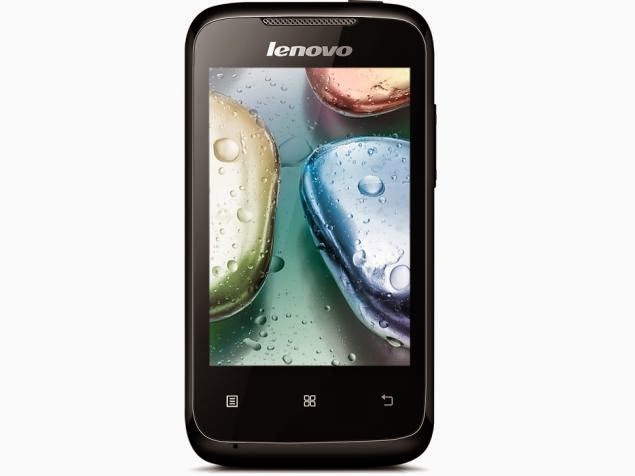
Hard resetting / factory resetting your phone will solve the following issues:
1. If you forgot your pattern lock
2. If you forgot your gmail account
3. If you forgot your password
4. Apps that automatically force closing
5. Stuck in Lenovo Logo (sometimes does not work if the firmware is totally damage)
NOTE: Performing hard reset will erase your data.
To hard reset:
1. Turn off your phone.
2. Press and Hold VOLUME UP + Power button. Keep pressing and holding until the phone power up and until you a boot menu to appear.
3. Select Recovery Mode, To navigate press VOLUME UP to confirm your selection Press VOLUME DOWN.
4.Press Power Button to activate Android System Recovery.
5. Select wipe / factory reset, press Volume rocker to navigate and press POWER Button to confirm your selection
6. Reboot your phone.
Note:
If performing hard reset did not succeed, you need to wipe the cache first in the android system recovery before performing wipe / factory reset.
I hope this tutorial helps you.. If you have any question just drop a
comment.
Read more »
Hard resetting / factory resetting your phone will solve the following issues:
1. If you forgot your pattern lock
2. If you forgot your gmail account
3. If you forgot your password
4. Apps that automatically force closing
5. Stuck in Lenovo Logo (sometimes does not work if the firmware is totally damage)
NOTE: Performing hard reset will erase your data.
To hard reset:
1. Turn off your phone.
2. Press and Hold VOLUME UP + Power button. Keep pressing and holding until the phone power up and until you a boot menu to appear.
3. Select Recovery Mode, To navigate press VOLUME UP to confirm your selection Press VOLUME DOWN.
4.Press Power Button to activate Android System Recovery.
5. Select wipe / factory reset, press Volume rocker to navigate and press POWER Button to confirm your selection
6. Reboot your phone.
Note:
If performing hard reset did not succeed, you need to wipe the cache first in the android system recovery before performing wipe / factory reset.
I hope this tutorial helps you.. If you have any question just drop a
comment.
Monday, January 26, 2015
How To Make Secure Your Facebook Account
1. Make sure only your Friends can see your Profile:
You wouldnt just go up to a stranger in the street and start telling them about your life, so why would you want them to see your Facebook profile?
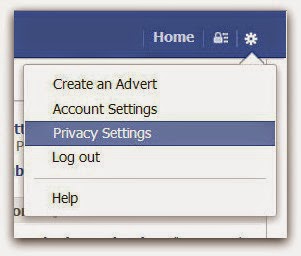
Click on the cog icon that you see in the top right hand corner of the screen. Then click Privacy Settings.
Click Privacy - the third option down in the left hand pane.
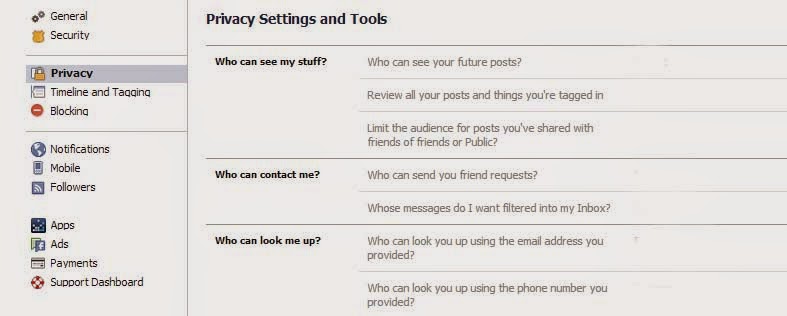
You are now in the Privacy Settings and Tools area of Facebook. From here you can control Who can see my stuff?
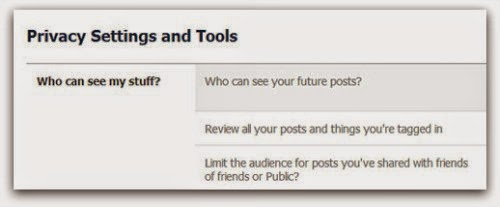
By editing Who can see your future posts? you will be able to choose exactly who gets to see your future updates.
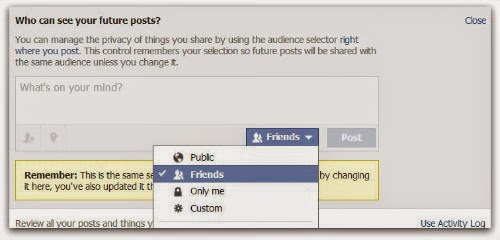
Choose from:
- Public (which obviously means everyone)
- Friends
- Only you
- Custom (which allows you to limit some of your friends from seeing your posts)
Pick whats best for you, but make sure Public isnt selected. Whatever you choose will then become the default every time you post an update (though you still have the option of selectively changing this for each individual update you post in the future).
If you want to limit old posts that you may have made available to everyone or friends of friends then you can do this individually in the Activity Log, or you can choose to Limit the audience for old posts on your timeline. This will change everything youve ever posted to only be seen by your friends...
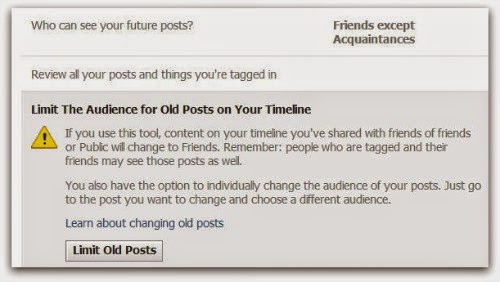
2. Control who can contact you on Facebook:
The second part of the Privacy Settings and Tools section allows you to select who can contact you.
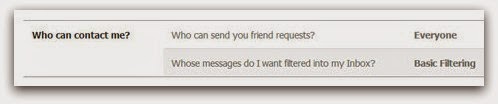
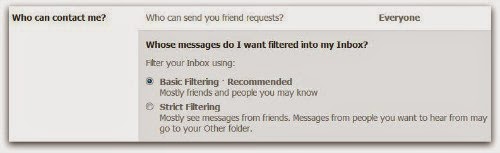
By default this is set up to allow friends and people you may know the opportunity to send you a message to your inbox.
If you want only friends to be able to contact you, you can increase the filtering on your inbox. Other messages will then be diverted to your other folder which you can access from your Messages screen.
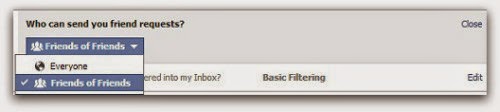
Additionally you can limit who can send you a friend request. By default, anyone can try to befriend you on Facebook, but if youd rather limit that a bit you can change it so only friends of your friends can add you as a friend:
3. Limit who can discover your profile based on your email address and/or telephone Number:
The final option from the Privacy Settings and Tools screen allows you to control who can find you using your email address or telephone number.
Under Who can look me up?, click Edit next to the line that says Who can look you up using the email address or telephone number you provided?
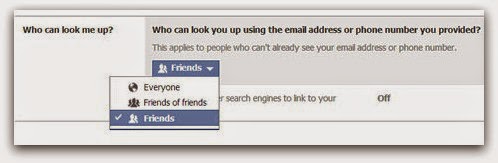
Change the setting to Friends of friends or Friends only.
4. Set up login Notifications:
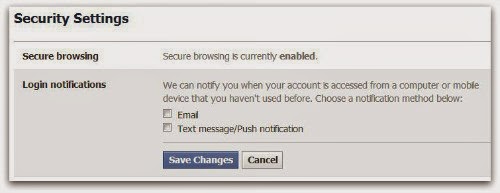
Facebook can send you an alert every time someone accesses your account from an unknown computer or other device, enabling you to receive a warning that someone has gained unauthorised access to your account.
Still under Privacy Settings, click the second option in the left hand pane.
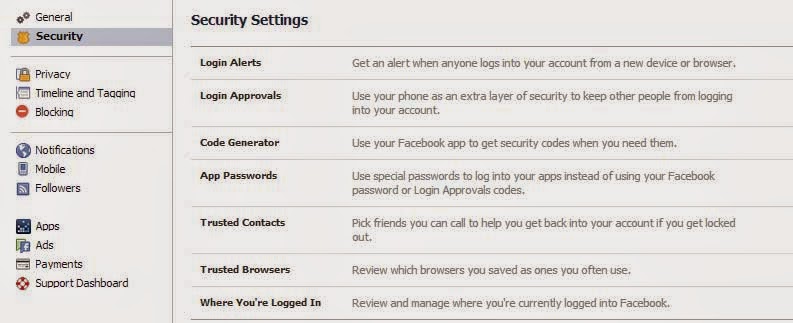
Click Edit next to login notifications and choose whether you want to receive an email or a text message/push alert. Click on Save Changes. Login notifications are now active.
5. Turn on login Approvals:
Every time you access your account from an unknown browser you can get Facebook to send a code to your phone which you will then need to use to login.
Next to Login approvals, click Edit. Then tick the box to require a security code to access my account from unknown browsers. Click Save Changes

Click Get Started. Facebook will then take you through the process of setting up login approvals.
Note, youll only need to use a code whenever you login from somewhere new so if you always use the same browser and phone you will not need to verify your identity every time. It does makes it much more difficult for a hacker to get into your account from elsewhere, so its a great thing to enable.
These are just a few tips that can help you safeguard your Facebook profile.
If you have any tips you wish to share, please leave them in the comments below.
Wednesday, January 21, 2015
Remove password pattern lock and even gmail account in your Cherry Mobile Superion Probe
Hi Yall
I thought this tablet does not have a way to hard reset or factory reset, but after 30 minutes I found a way to hard reset / factory reset it. Cherry Mobile Superion Probe has a FASTBOOT mode, you read it right FASTBOOT mode. You may never notice it but it has. After 30 minutes of fiddling the tablet I found the key to enter in the FASTBOOT mode.
I manage to wipe the tablet in WINDOWS first, but after rebooting the tablet it does not properly boot up it is just keep on rebooting in cherry mobile logo and android logo. What I did is that I tried to wipe it in Linux. And after rebooting and rebooted successfully into its normal state.
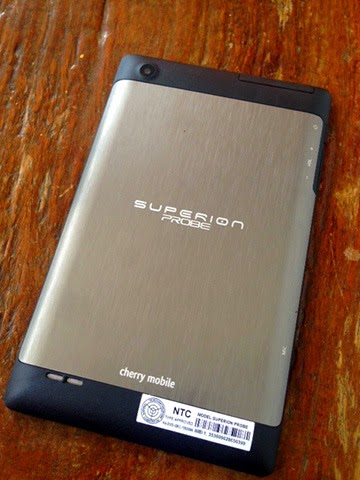
SO here is the procedure on how to factory reset your Cherry Mobile Superion Probe.
Download this file first and extract it
ADB Tools
NOTE: TRY WINDOWS MODE AT YOUR OWN RISK, AS I HAVE SUCCESSFULLY RECOVERED THE TABLET IN LINUX OS.
WINDOWS Mode
1. Turn off your Tablet
2. Press Volume DOWN and Insert USB Cable
3. You will notice that it is stuck in Superion Probe Logo, that is the FASTBOOT mode.
4. Go to adb-fastboot-win folder that you downloaded and extracted
5. Open commandprompt.bat
6. Execute this command

7. After rebooting cherry mobile boot tones. If you did not hear it, it will keep on rebooting but dont worry just head to Linux tutorial below.
LINUX Mode
First you need to update your package manager and download fastboot tools in android.
Here is how to download it
1. Open terminal emulator or press this ctrl + alt + T and it will open up Terminal, this is for Ubuntu, Lubuntu command that I have tried.
2. Then in terminal type the following command
4. Go to terminal again and execute this command
If you find this tutorial useful, a simple thank you in comment box will suffice :)
Read more »
I thought this tablet does not have a way to hard reset or factory reset, but after 30 minutes I found a way to hard reset / factory reset it. Cherry Mobile Superion Probe has a FASTBOOT mode, you read it right FASTBOOT mode. You may never notice it but it has. After 30 minutes of fiddling the tablet I found the key to enter in the FASTBOOT mode.
I manage to wipe the tablet in WINDOWS first, but after rebooting the tablet it does not properly boot up it is just keep on rebooting in cherry mobile logo and android logo. What I did is that I tried to wipe it in Linux. And after rebooting and rebooted successfully into its normal state.
SO here is the procedure on how to factory reset your Cherry Mobile Superion Probe.
Download this file first and extract it
ADB Tools
NOTE: TRY WINDOWS MODE AT YOUR OWN RISK, AS I HAVE SUCCESSFULLY RECOVERED THE TABLET IN LINUX OS.
WINDOWS Mode
1. Turn off your Tablet
2. Press Volume DOWN and Insert USB Cable
3. You will notice that it is stuck in Superion Probe Logo, that is the FASTBOOT mode.
4. Go to adb-fastboot-win folder that you downloaded and extracted
5. Open commandprompt.bat
6. Execute this command
fastboot -w
fastboot reboot
7. After rebooting cherry mobile boot tones. If you did not hear it, it will keep on rebooting but dont worry just head to Linux tutorial below.
LINUX Mode
First you need to update your package manager and download fastboot tools in android.
Here is how to download it
1. Open terminal emulator or press this ctrl + alt + T and it will open up Terminal, this is for Ubuntu, Lubuntu command that I have tried.
2. Then in terminal type the following command
sudo apt-get update3. After installing it enter FASTBOOT mode in your tablet.
sudo apt-get install android-tools-fastboot
4. Go to terminal again and execute this command
sudo fastboot -w5. Wait for it to reboot, you will hear the cherry mobile boot power up tones. Smile you can now use your tablet :)
sudo fastboot reboot
If you find this tutorial useful, a simple thank you in comment box will suffice :)
Subscribe to:
Posts (Atom)