Showing posts with label reset. Show all posts
Showing posts with label reset. Show all posts
Tuesday, February 3, 2015
Hard Reset your Star Mobile Engage 7 HD and remove password pattern lock and gmail account
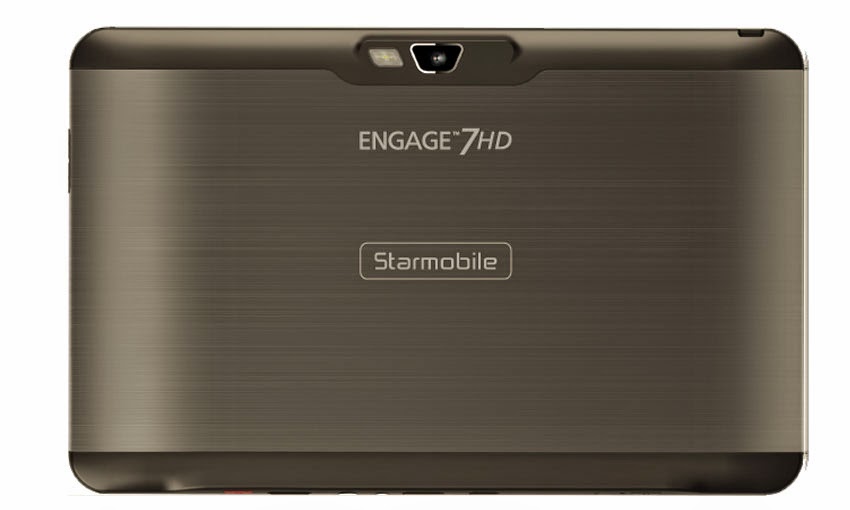
A starmobile tablet came into my work station and made a tutorial on how to hard reset. The table is the Star Mobile 7 HD.
Hard resetting / factory resetting your phone will solve the following issues:
1. If you forgot your pattern lock
2. If you forgot your gmail account
3. If you forgot your password
4. Apps that automatically force closing
5. Stuck in StarMobile Logo (sometimes does not work if the firmware is totally damage)
NOTE: Performing hard reset will erase your data.
To hard reset:
1. Turn off your tablet.
2. Press and hold the POWER + VOLUME UP (left button when you are holding the tablet vertically and the camera is on the left side). Until you see the Android Robot, then release all buttons.
3. Select wipe / factory reset, press Volume UP to navigate and press VOLUME DOWN to confirm your selection
4. Reboot your phone.
I hope this tutorial helps you.. If you have any question just drop a comment.

Monday, February 2, 2015
Hard Reset your Cherry Mobile Flare S3 and remove password pattern lock and gmail account
Hey,
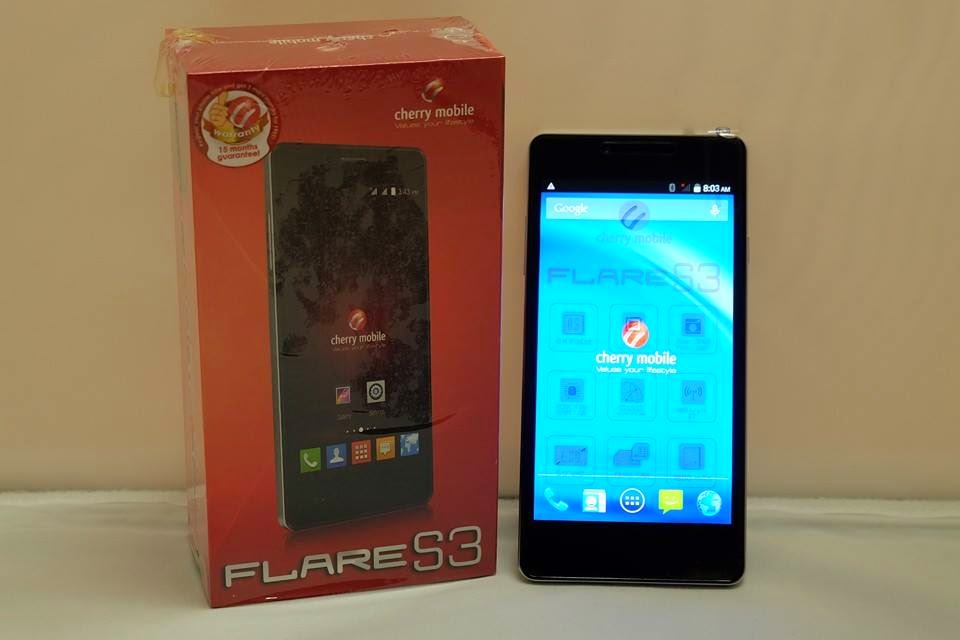
I have a Flare S3 phone and as I remember I still dont have a tutorial to hard reset this phone. Just check out the tutorial below.
Hard resetting / factory resetting your phone will solve the following issues:
1. If you forgot your pattern lock
2. If you forgot your gmail account
3. If you forgot your password
4. Apps that automatically force closing
5. Stuck in Cherry Mobile Logo (sometimes does not work if the firmware is totally damage)
NOTE: Performing hard reset will erase your data.
To hard reset:
1. Turn off your phone.
2. Press and Hold VOLUME UP + Power button (for about 10 seconds). Keep pressing and holding until the phone power up and until you enter in Android System Recovery.
3. Select wipe data / factory reset. To navigate press the VOLUME ROCKER, to confirm your selection PRESS VOLUME UP
4. Reboot your phone.
Note:
If performing hard reset did not succeed, you need to wipe the cache first in the android system recovery before performing wipe / factory reset.
I hope this tutorial helps you.. If you have any question just drop a
comment.
Read more »
I have a Flare S3 phone and as I remember I still dont have a tutorial to hard reset this phone. Just check out the tutorial below.
Hard resetting / factory resetting your phone will solve the following issues:
1. If you forgot your pattern lock
2. If you forgot your gmail account
3. If you forgot your password
4. Apps that automatically force closing
5. Stuck in Cherry Mobile Logo (sometimes does not work if the firmware is totally damage)
NOTE: Performing hard reset will erase your data.
To hard reset:
1. Turn off your phone.
2. Press and Hold VOLUME UP + Power button (for about 10 seconds). Keep pressing and holding until the phone power up and until you enter in Android System Recovery.
3. Select wipe data / factory reset. To navigate press the VOLUME ROCKER, to confirm your selection PRESS VOLUME UP
4. Reboot your phone.
Note:
If performing hard reset did not succeed, you need to wipe the cache first in the android system recovery before performing wipe / factory reset.
I hope this tutorial helps you.. If you have any question just drop a
comment.
MyPhone Agua Hail Hard Reset Hang Google Account Removal Pattern Lock
Before you proceed flashing / hard resetting your phone / tablet make sure to back up your important files if possible. Because we care about your data.
We also suggest that your battery should be atleast 50% or better to have it fully charge, lower than the said value may cause unwanted result, such as bricking your phone / tablet rendering it unuseable. This is very important in flashing your phone / tablet. Use original USB cable as possible.
Files that you downloaded should not be corrupted, if ever the file is corrupted you might brick your phone. Or the flashing will start.
Drivers are very important specially in Spreadtrum Chipset, having an Spreadtrum SPD6610 (non android devices) driver will not work in SPD6820 (android devices).
If you are using laptop to flash your phone, make your that it has enough charge. If your laptop shutdown when your flashing your phone/tablet, youll end up bricking your phone. Sometimes you can still recover your phone just flash it again and your phone will boot up again. But that is just a case to case basis, if your phone / tablet is deadboot (totally dead, erased all program in the chip) you cant recover it, you will need to seek professional help (technician).
In this tutorial I will gonna teach you how to hard reset your MyPhone Agua Hail. This can fix the following issues that you are experiencing in your phone:
1. Force Close Apps
2. If you forgot your Google Account
3. Hang in Logo (sometimes)
4. Pattern Lock

1. Press Volume Up + Volume + Power Button, a boot menu will appear and press recovery mode (volume up)
2. Android Recovery Mode will appear.
3. Select wipe data/factory reset
4. Reboot your phone
If you find the tutorial incorrect please drop us a comment. Thank you.
Saturday, January 31, 2015
Hard Reset your Firefly S60 v4 and remove password pattern lock gmail account
Hey i got a new tutorial and this one is for Firefly S60 v4, it is the kitkat version of this phone. If I can still remember there is a gingerbread version of this phone so doing this method in lower version of this phone might not work.

Hard resetting / factory resetting your phone will solve the following issues:
1. If you forgot your pattern lock
2. If you forgot your gmail account
3. If you forgot your password
4. Apps that automatically force closing
5. Stuck in Firefly Logo (sometimes does not work if the firmware is totally damage)
NOTE: Performing hard reset will erase your data.
To hard reset:
1. Turn off your phone.
2. Press and Hold VOLUME UP + Power button. Keep pressing and holding until the phone power up and until you a boot menu to appear.
3. Select Recovery Mode, To navigate press VOLUME UP to confirm your selection Press VOLUME DOWN.
4.Press Power Button to activate Android System Recovery.
5. Select wipe / factory reset, press Volume rocker to navigate and press VOLUME UP to confirm your selection
6. Reboot your phone.
Note:
If performing hard reset did not succeed, you need to wipe the cache first in the android system recovery before performing wipe / factory reset.
I hope this tutorial helps you.. If you have any question just drop a
comment.
Read more »
Hard resetting / factory resetting your phone will solve the following issues:
1. If you forgot your pattern lock
2. If you forgot your gmail account
3. If you forgot your password
4. Apps that automatically force closing
5. Stuck in Firefly Logo (sometimes does not work if the firmware is totally damage)
NOTE: Performing hard reset will erase your data.
To hard reset:
1. Turn off your phone.
2. Press and Hold VOLUME UP + Power button. Keep pressing and holding until the phone power up and until you a boot menu to appear.
3. Select Recovery Mode, To navigate press VOLUME UP to confirm your selection Press VOLUME DOWN.
4.Press Power Button to activate Android System Recovery.
5. Select wipe / factory reset, press Volume rocker to navigate and press VOLUME UP to confirm your selection
6. Reboot your phone.
Note:
If performing hard reset did not succeed, you need to wipe the cache first in the android system recovery before performing wipe / factory reset.
I hope this tutorial helps you.. If you have any question just drop a
comment.
Friday, January 30, 2015
Acer Iconia B1 Hard Reset Hang Google Account Removal Pattern Lock
Before you proceed flashing / hard resetting your phone / tablet make sure to back up your important files if possible. Because we care about your data.
We also suggest that your battery should be atleast 50% or better to have it fully charge, lower than the said value may cause unwanted result, such as bricking your phone / tablet rendering it unuseable. This is very important in flashing your phone / tablet. Use original USB cable as possible.
Files that you downloaded should not be corrupted, if ever the file is corrupted you might brick your phone. Or the flashing will start.
Drivers are very important specially in Spreadtrum Chipset, having an Spreadtrum SPD6610 (non android devices) driver will not work in SPD6820 (android devices).
If you are using laptop to flash your phone, make your that it has enough charge. If your laptop shutdown when your flashing your phone/tablet, youll end up bricking your phone. Sometimes you can still recover your phone just flash it again and your phone will boot up again. But that is just a case to case basis, if your phone / tablet is deadboot (totally dead, erased all program in the chip) you cant recover it, you will need to seek professional help (technician).
In this tutorial I will gonna teach you how to hard reset your Acer Iconia B1. This can fix the following issues that you are experiencing in your phone:
1. Force Close Apps
2. If you forgot your Google Account
3. Hang in Logo (sometimes)
4. Pattern Lock

1. Turn off the tablet and press VOLUME UP and POWER BUTTON wait until a selection will appear
2. Select SD Image Update, and Android system recovery will appear.
3. Select wipe data/factory reset
4. Reboot your tablet
If you find the tutorial incorrect please drop us a comment. Thank you.
Wednesday, January 28, 2015
Hard Reset your Lenovo A269i and remove password pattern lock and gmail account
Im back :) I got a new tutorial. This one is for Lenovo A269i. You can check out the tutorial below. I will be posting my back up rom for this particular model. Soon.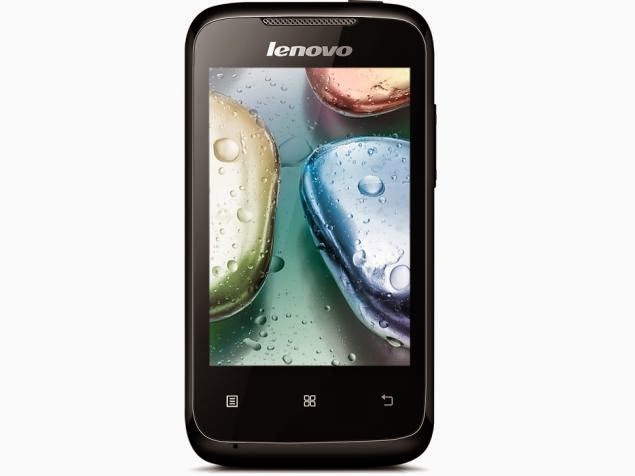
Hard resetting / factory resetting your phone will solve the following issues:
1. If you forgot your pattern lock
2. If you forgot your gmail account
3. If you forgot your password
4. Apps that automatically force closing
5. Stuck in Lenovo Logo (sometimes does not work if the firmware is totally damage)
NOTE: Performing hard reset will erase your data.
To hard reset:
1. Turn off your phone.
2. Press and Hold VOLUME UP + Power button. Keep pressing and holding until the phone power up and until you a boot menu to appear.
3. Select Recovery Mode, To navigate press VOLUME UP to confirm your selection Press VOLUME DOWN.
4.Press Power Button to activate Android System Recovery.
5. Select wipe / factory reset, press Volume rocker to navigate and press POWER Button to confirm your selection
6. Reboot your phone.
Note:
If performing hard reset did not succeed, you need to wipe the cache first in the android system recovery before performing wipe / factory reset.
I hope this tutorial helps you.. If you have any question just drop a
comment.
Read more »
Hard resetting / factory resetting your phone will solve the following issues:
1. If you forgot your pattern lock
2. If you forgot your gmail account
3. If you forgot your password
4. Apps that automatically force closing
5. Stuck in Lenovo Logo (sometimes does not work if the firmware is totally damage)
NOTE: Performing hard reset will erase your data.
To hard reset:
1. Turn off your phone.
2. Press and Hold VOLUME UP + Power button. Keep pressing and holding until the phone power up and until you a boot menu to appear.
3. Select Recovery Mode, To navigate press VOLUME UP to confirm your selection Press VOLUME DOWN.
4.Press Power Button to activate Android System Recovery.
5. Select wipe / factory reset, press Volume rocker to navigate and press POWER Button to confirm your selection
6. Reboot your phone.
Note:
If performing hard reset did not succeed, you need to wipe the cache first in the android system recovery before performing wipe / factory reset.
I hope this tutorial helps you.. If you have any question just drop a
comment.
Subscribe to:
Posts (Atom)