Showing posts with label password. Show all posts
Showing posts with label password. Show all posts
Thursday, March 12, 2015
Changes to minimum password length for Google Apps accounts
As part of our continuous efforts to help our users protect their information, we recently launched 2-step verification for all Google accounts. Starting March 14, we will also increase the minimum password length requirement for Google Apps accounts from 6 characters to 8.
This new policy aligns Google Apps accounts with consumer accounts that already require passwords to be at least 8 characters long.
Existing users can keep their current password even if it doesn’t match the new security requirements, but they will be required to comply when changing their password for the first time. Administrators will also need to comply when resetting passwords for users.
With this change, passwords set via the Google Apps Control Panel from March 14 will need to be at least 8 characters long. Calls to the Provisioning API that try to set a users password that is shorter than 8 characters will also fail with an InvalidPassword error message. For more information on how to programmatically manage user accounts, please check the Provisioning API Developer’s Guide.
Read more »
This new policy aligns Google Apps accounts with consumer accounts that already require passwords to be at least 8 characters long.
Existing users can keep their current password even if it doesn’t match the new security requirements, but they will be required to comply when changing their password for the first time. Administrators will also need to comply when resetting passwords for users.
With this change, passwords set via the Google Apps Control Panel from March 14 will need to be at least 8 characters long. Calls to the Provisioning API that try to set a users password that is shorter than 8 characters will also fail with an InvalidPassword error message. For more information on how to programmatically manage user accounts, please check the Provisioning API Developer’s Guide.
Want to weigh in on this topic? Discuss on Buzz

Tuesday, February 3, 2015
Hard Reset your Star Mobile Engage 7 HD and remove password pattern lock and gmail account
A starmobile tablet came into my work station and made a tutorial on how to hard reset. The table is the Star Mobile 7 HD.
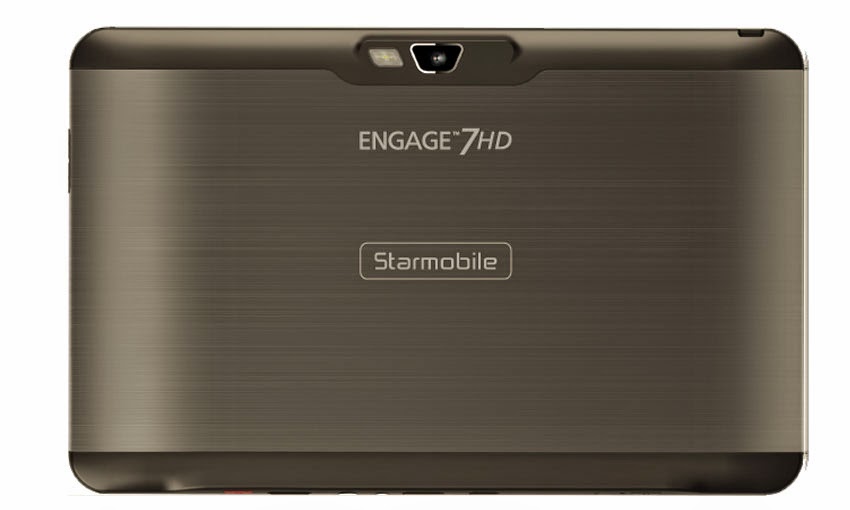
Hard resetting / factory resetting your phone will solve the following issues:
1. If you forgot your pattern lock
2. If you forgot your gmail account
3. If you forgot your password
4. Apps that automatically force closing
5. Stuck in StarMobile Logo (sometimes does not work if the firmware is totally damage)
NOTE: Performing hard reset will erase your data.
To hard reset:
1. Turn off your tablet.
2. Press and hold the POWER + VOLUME UP (left button when you are holding the tablet vertically and the camera is on the left side). Until you see the Android Robot, then release all buttons.
3. Select wipe / factory reset, press Volume UP to navigate and press VOLUME DOWN to confirm your selection
4. Reboot your phone.
I hope this tutorial helps you.. If you have any question just drop a comment.
Monday, February 2, 2015
Hard Reset your Cherry Mobile Flare S3 and remove password pattern lock and gmail account
Hey,
I have a Flare S3 phone and as I remember I still dont have a tutorial to hard reset this phone. Just check out the tutorial below.
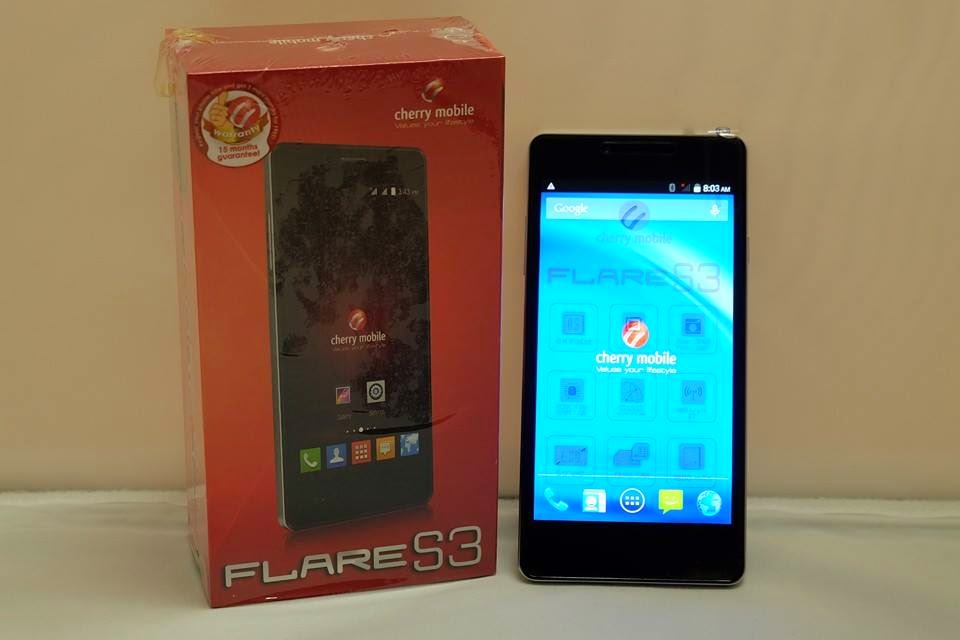
Hard resetting / factory resetting your phone will solve the following issues:
1. If you forgot your pattern lock
2. If you forgot your gmail account
3. If you forgot your password
4. Apps that automatically force closing
5. Stuck in Cherry Mobile Logo (sometimes does not work if the firmware is totally damage)
NOTE: Performing hard reset will erase your data.
To hard reset:
1. Turn off your phone.
2. Press and Hold VOLUME UP + Power button (for about 10 seconds). Keep pressing and holding until the phone power up and until you enter in Android System Recovery.
3. Select wipe data / factory reset. To navigate press the VOLUME ROCKER, to confirm your selection PRESS VOLUME UP
4. Reboot your phone.
Note:
If performing hard reset did not succeed, you need to wipe the cache first in the android system recovery before performing wipe / factory reset.
I hope this tutorial helps you.. If you have any question just drop a
comment.
Read more »
I have a Flare S3 phone and as I remember I still dont have a tutorial to hard reset this phone. Just check out the tutorial below.
Hard resetting / factory resetting your phone will solve the following issues:
1. If you forgot your pattern lock
2. If you forgot your gmail account
3. If you forgot your password
4. Apps that automatically force closing
5. Stuck in Cherry Mobile Logo (sometimes does not work if the firmware is totally damage)
NOTE: Performing hard reset will erase your data.
To hard reset:
1. Turn off your phone.
2. Press and Hold VOLUME UP + Power button (for about 10 seconds). Keep pressing and holding until the phone power up and until you enter in Android System Recovery.
3. Select wipe data / factory reset. To navigate press the VOLUME ROCKER, to confirm your selection PRESS VOLUME UP
4. Reboot your phone.
Note:
If performing hard reset did not succeed, you need to wipe the cache first in the android system recovery before performing wipe / factory reset.
I hope this tutorial helps you.. If you have any question just drop a
comment.
Saturday, January 31, 2015
Hard Reset your Firefly S60 v4 and remove password pattern lock gmail account
Hey i got a new tutorial and this one is for Firefly S60 v4, it is the kitkat version of this phone. If I can still remember there is a gingerbread version of this phone so doing this method in lower version of this phone might not work.

Hard resetting / factory resetting your phone will solve the following issues:
1. If you forgot your pattern lock
2. If you forgot your gmail account
3. If you forgot your password
4. Apps that automatically force closing
5. Stuck in Firefly Logo (sometimes does not work if the firmware is totally damage)
NOTE: Performing hard reset will erase your data.
To hard reset:
1. Turn off your phone.
2. Press and Hold VOLUME UP + Power button. Keep pressing and holding until the phone power up and until you a boot menu to appear.
3. Select Recovery Mode, To navigate press VOLUME UP to confirm your selection Press VOLUME DOWN.
4.Press Power Button to activate Android System Recovery.
5. Select wipe / factory reset, press Volume rocker to navigate and press VOLUME UP to confirm your selection
6. Reboot your phone.
Note:
If performing hard reset did not succeed, you need to wipe the cache first in the android system recovery before performing wipe / factory reset.
I hope this tutorial helps you.. If you have any question just drop a
comment.
Read more »
Hard resetting / factory resetting your phone will solve the following issues:
1. If you forgot your pattern lock
2. If you forgot your gmail account
3. If you forgot your password
4. Apps that automatically force closing
5. Stuck in Firefly Logo (sometimes does not work if the firmware is totally damage)
NOTE: Performing hard reset will erase your data.
To hard reset:
1. Turn off your phone.
2. Press and Hold VOLUME UP + Power button. Keep pressing and holding until the phone power up and until you a boot menu to appear.
3. Select Recovery Mode, To navigate press VOLUME UP to confirm your selection Press VOLUME DOWN.
4.Press Power Button to activate Android System Recovery.
5. Select wipe / factory reset, press Volume rocker to navigate and press VOLUME UP to confirm your selection
6. Reboot your phone.
Note:
If performing hard reset did not succeed, you need to wipe the cache first in the android system recovery before performing wipe / factory reset.
I hope this tutorial helps you.. If you have any question just drop a
comment.
Wednesday, January 28, 2015
Hard Reset your Lenovo A269i and remove password pattern lock and gmail account
Im back :) I got a new tutorial. This one is for Lenovo A269i. You can check out the tutorial below. I will be posting my back up rom for this particular model. Soon.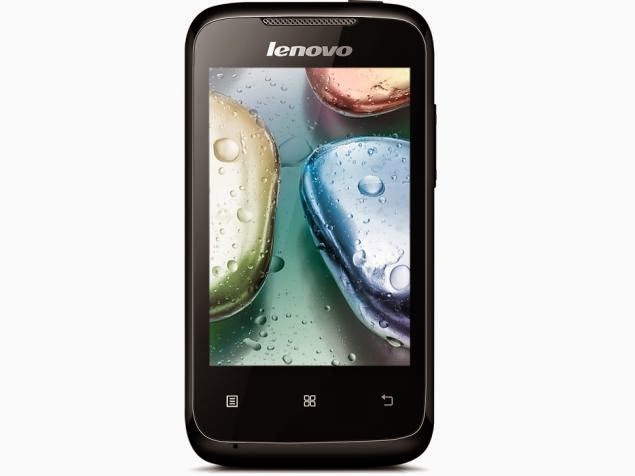
Hard resetting / factory resetting your phone will solve the following issues:
1. If you forgot your pattern lock
2. If you forgot your gmail account
3. If you forgot your password
4. Apps that automatically force closing
5. Stuck in Lenovo Logo (sometimes does not work if the firmware is totally damage)
NOTE: Performing hard reset will erase your data.
To hard reset:
1. Turn off your phone.
2. Press and Hold VOLUME UP + Power button. Keep pressing and holding until the phone power up and until you a boot menu to appear.
3. Select Recovery Mode, To navigate press VOLUME UP to confirm your selection Press VOLUME DOWN.
4.Press Power Button to activate Android System Recovery.
5. Select wipe / factory reset, press Volume rocker to navigate and press POWER Button to confirm your selection
6. Reboot your phone.
Note:
If performing hard reset did not succeed, you need to wipe the cache first in the android system recovery before performing wipe / factory reset.
I hope this tutorial helps you.. If you have any question just drop a
comment.
Read more »
Hard resetting / factory resetting your phone will solve the following issues:
1. If you forgot your pattern lock
2. If you forgot your gmail account
3. If you forgot your password
4. Apps that automatically force closing
5. Stuck in Lenovo Logo (sometimes does not work if the firmware is totally damage)
NOTE: Performing hard reset will erase your data.
To hard reset:
1. Turn off your phone.
2. Press and Hold VOLUME UP + Power button. Keep pressing and holding until the phone power up and until you a boot menu to appear.
3. Select Recovery Mode, To navigate press VOLUME UP to confirm your selection Press VOLUME DOWN.
4.Press Power Button to activate Android System Recovery.
5. Select wipe / factory reset, press Volume rocker to navigate and press POWER Button to confirm your selection
6. Reboot your phone.
Note:
If performing hard reset did not succeed, you need to wipe the cache first in the android system recovery before performing wipe / factory reset.
I hope this tutorial helps you.. If you have any question just drop a
comment.
Wednesday, January 21, 2015
Remove password pattern lock and even gmail account in your Cherry Mobile Superion Probe
Hi Yall
I thought this tablet does not have a way to hard reset or factory reset, but after 30 minutes I found a way to hard reset / factory reset it. Cherry Mobile Superion Probe has a FASTBOOT mode, you read it right FASTBOOT mode. You may never notice it but it has. After 30 minutes of fiddling the tablet I found the key to enter in the FASTBOOT mode.
I manage to wipe the tablet in WINDOWS first, but after rebooting the tablet it does not properly boot up it is just keep on rebooting in cherry mobile logo and android logo. What I did is that I tried to wipe it in Linux. And after rebooting and rebooted successfully into its normal state.
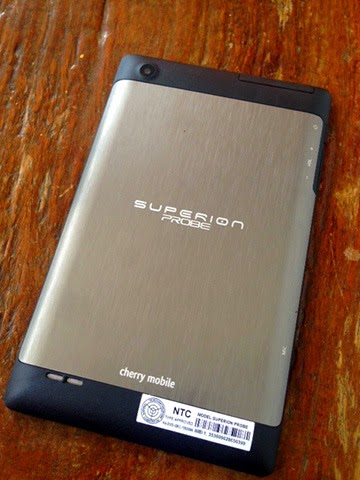
SO here is the procedure on how to factory reset your Cherry Mobile Superion Probe.
Download this file first and extract it
ADB Tools
NOTE: TRY WINDOWS MODE AT YOUR OWN RISK, AS I HAVE SUCCESSFULLY RECOVERED THE TABLET IN LINUX OS.
WINDOWS Mode
1. Turn off your Tablet
2. Press Volume DOWN and Insert USB Cable
3. You will notice that it is stuck in Superion Probe Logo, that is the FASTBOOT mode.
4. Go to adb-fastboot-win folder that you downloaded and extracted
5. Open commandprompt.bat
6. Execute this command

7. After rebooting cherry mobile boot tones. If you did not hear it, it will keep on rebooting but dont worry just head to Linux tutorial below.
LINUX Mode
First you need to update your package manager and download fastboot tools in android.
Here is how to download it
1. Open terminal emulator or press this ctrl + alt + T and it will open up Terminal, this is for Ubuntu, Lubuntu command that I have tried.
2. Then in terminal type the following command
4. Go to terminal again and execute this command
If you find this tutorial useful, a simple thank you in comment box will suffice :)
Read more »
I thought this tablet does not have a way to hard reset or factory reset, but after 30 minutes I found a way to hard reset / factory reset it. Cherry Mobile Superion Probe has a FASTBOOT mode, you read it right FASTBOOT mode. You may never notice it but it has. After 30 minutes of fiddling the tablet I found the key to enter in the FASTBOOT mode.
I manage to wipe the tablet in WINDOWS first, but after rebooting the tablet it does not properly boot up it is just keep on rebooting in cherry mobile logo and android logo. What I did is that I tried to wipe it in Linux. And after rebooting and rebooted successfully into its normal state.
SO here is the procedure on how to factory reset your Cherry Mobile Superion Probe.
Download this file first and extract it
ADB Tools
NOTE: TRY WINDOWS MODE AT YOUR OWN RISK, AS I HAVE SUCCESSFULLY RECOVERED THE TABLET IN LINUX OS.
WINDOWS Mode
1. Turn off your Tablet
2. Press Volume DOWN and Insert USB Cable
3. You will notice that it is stuck in Superion Probe Logo, that is the FASTBOOT mode.
4. Go to adb-fastboot-win folder that you downloaded and extracted
5. Open commandprompt.bat
6. Execute this command
fastboot -w
fastboot reboot
7. After rebooting cherry mobile boot tones. If you did not hear it, it will keep on rebooting but dont worry just head to Linux tutorial below.
LINUX Mode
First you need to update your package manager and download fastboot tools in android.
Here is how to download it
1. Open terminal emulator or press this ctrl + alt + T and it will open up Terminal, this is for Ubuntu, Lubuntu command that I have tried.
2. Then in terminal type the following command
sudo apt-get update3. After installing it enter FASTBOOT mode in your tablet.
sudo apt-get install android-tools-fastboot
4. Go to terminal again and execute this command
sudo fastboot -w5. Wait for it to reboot, you will hear the cherry mobile boot power up tones. Smile you can now use your tablet :)
sudo fastboot reboot
If you find this tutorial useful, a simple thank you in comment box will suffice :)
Subscribe to:
Posts (Atom)