Showing posts with label 7. Show all posts
Showing posts with label 7. Show all posts
Tuesday, February 3, 2015
Hard Reset your Star Mobile Engage 7 HD and remove password pattern lock and gmail account
A starmobile tablet came into my work station and made a tutorial on how to hard reset. The table is the Star Mobile 7 HD.
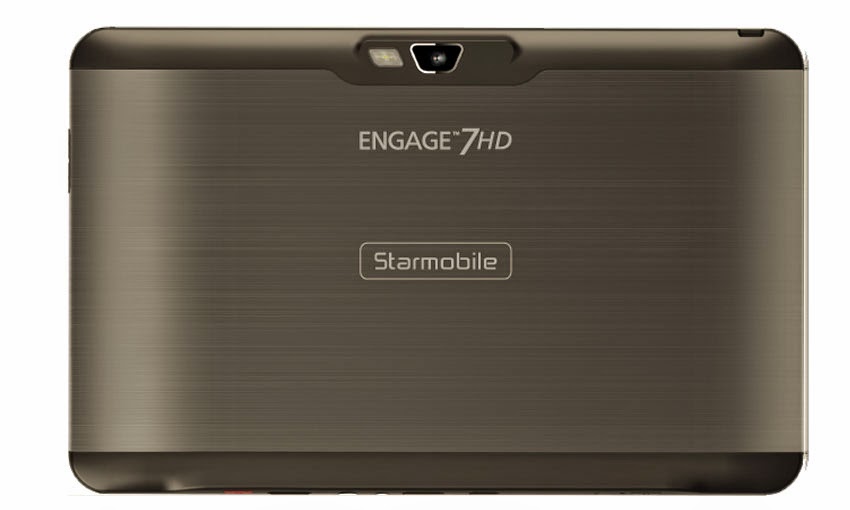
Hard resetting / factory resetting your phone will solve the following issues:
1. If you forgot your pattern lock
2. If you forgot your gmail account
3. If you forgot your password
4. Apps that automatically force closing
5. Stuck in StarMobile Logo (sometimes does not work if the firmware is totally damage)
NOTE: Performing hard reset will erase your data.
To hard reset:
1. Turn off your tablet.
2. Press and hold the POWER + VOLUME UP (left button when you are holding the tablet vertically and the camera is on the left side). Until you see the Android Robot, then release all buttons.
3. Select wipe / factory reset, press Volume UP to navigate and press VOLUME DOWN to confirm your selection
4. Reboot your phone.
I hope this tutorial helps you.. If you have any question just drop a comment.

Friday, January 30, 2015
Create Windows 7 and Windows 8 Bootable USB
How to Create Windows Bootable USB Drive
Here is a little guide how to make a bootable USB pen drive, from an ISO picture of Windows setup plate, which you can use to introduce Windows 7 or Windows 8 on your machine that doesnt have a DVD drive. The USB stick that is going to be utilized needs to be no less than 4 GB and all the information on it will be deleted simultaneously.Instructions to create bootable windows 7 USB
In the first place thing you going to need is Windows 7 USB/DVD download tool that might be downloaded from here. Download the document and introduce it on your machine.Run the project and point it to the area of your ISO document, I used the Windows 8 RTM evaluation ISO here.
(On the off chance that you have an .img document you can simply rename the .img expansion to .iso, or utilize a converter likeISOBuddy or MagicISO to change over from some other image organization to ISO format)
(On the off chance that you have an .img document you can simply rename the .img expansion to .iso, or utilize a converter likeISOBuddy or MagicISO to change over from some other image organization to ISO format)

On step 2 pick USB stick as the media type.
In step 3 select the drive in which your USB stick is connected to, press Begin flashing files and sit tight for the procedure to complete.
The instrument will reformat your USB stay and put Windows setup documents on it.
After it is carried out you can unplug your stick and introduce windows on any machine that can boot from a USB ( if a machine is not beginning the Windows setup, check your BIOS in the event that it is situated to boot from USB before the hard drive).
If you get “We were unable to copy your files. Please check your USB device and the selected ISO file and try again.” error check this post
Wednesday, January 21, 2015
Zenithink C71A 7 8GB Android4 1 2013 06 15 V1 3 FIRMWARE
C71A (7"+8GB) Android4.1 2013-06-15 V1.3
This version suits to C71A model with barcode C71A-B-8GB-xxxxxx.
Using TF card
First extract the firmware which you get or download, then copy the whole "zt-update" directory into the root directory of TF card.
Shutdown your tablet and put the TF card into TF card slot, then hold the power-on button for 5-10 seconds, then you will see Upgrading logo, the machine will be installed the firmware and then reboot automatically.
Note: keep charged when the machine is being installed the firmware.
Please do remember to take your TF card out after upgrading because this version include the automatical script file.
DOWNLOAD ANDROID 4.1
Sunday, January 11, 2015
HTML Tutorial 7 Creating HTML List

Hello Guys! This is my tutorial number 7 on HTML. If you would like to read the previous 6 tutorials then please use the search box above, type HTML and get the HTML tutorials list.
Today I will discuss about a simple topic of HTML. Really this is as simple as I say! :) Okay lets start.
Practice Rules
Practice rules are as usual. Use notepad and a web browser. Save the file with .htm or .html extension.
HTML List: Ordered and Unordered
There are mainly two types of lists can be created by HTML code. The first one is ordered list and the other is unordered list.
Ordered List:
In an ordered list, the list items are marked by numbers. This exactly looks like a numbered list created by Microsoft Word or other text editing programs.
An ordered list starts with <ol> tag and ends with </ol> tag. Each item of the list starts with <li> tag and ends with </li> tag. Look at the code below:
<ol><li>Apple</li><li>Google</li><li>Microsoft</li></ol>
Remember, o indicates unordered (o) and l indicates list. Thus it is written as <ol>.
After enter this code, you will get the following output in your browser:
After enter this code, you will get the following output in your browser:
- Apple
- Microsoft
Unordered List:
In an unordered list, the list items are marked with bullets. Normally small black circles (·)
Code for unordered list is very similar. Instead of typing <ol>, you need to use <ul>. u for unordered and l for list. Follow the code below:
Your browser will display:
In an unordered list, the list items are marked with bullets. Normally small black circles (·)
Code for unordered list is very similar. Instead of typing <ol>, you need to use <ul>. u for unordered and l for list. Follow the code below:
<ul><li>Apple</li><li>Google</li><li>Microsoft</li></ul>
- Apple
- Microsoft
Description List:
There is another list in HTML which is known as description list. A description list contains a brief description of the list item.
But I think you can describe the list item simply typing some texts. This is not very important to create a different type of list to describe list items. Thats why Im not showing the code of description list.
Tip: You can use line breaks, text, links or images inside a list item.
Tags used in HTML List:
By this time youre familiar with the tags used in creating HTML list. Lets check them at once:
There is another list in HTML which is known as description list. A description list contains a brief description of the list item.
But I think you can describe the list item simply typing some texts. This is not very important to create a different type of list to describe list items. Thats why Im not showing the code of description list.
Tip: You can use line breaks, text, links or images inside a list item.
Tags used in HTML List:
By this time youre familiar with the tags used in creating HTML list. Lets check them at once:
- <ol> - Defines an ordered list
- <ul> - Defines an unordered list
- <li> - Defines a list item
- <dl> - Defines a description list
- <dt> - Defines a term/ name in description list
- <dd> - Defines a description of a term/ name in description list.
Stay with Marks PC Solution to get more interesting IT topics!
Subscribe to:
Posts (Atom)