Wednesday, March 11, 2015
Automate Google Analytics Reporting Using Google Apps Script
Editors note: This has been cross-posted with the Google Analytics blog and the Google Developers blog -- Jan Kleinert
Many people have been asking for a simple way to put Google Analytics data into a Google Spreadsheet. Once the data is inside a Google Spreadsheet, users can easily manipulate Google Analytics data, create new visualizations, and build internal dashboards.
So today we released a new integration that dramatically reduces the work required to put Google Analytics data into any Apps Script supported product, such as Google Docs, Sites, or Spreadsheets.
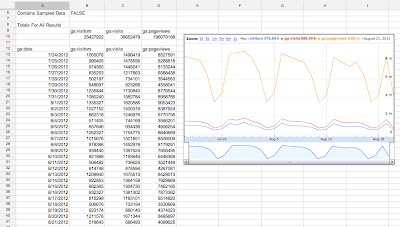
Here’s an example of Google Analytics data accessed through Apps Script and displayed in a Google Spreadsheet.
Custom API Dashboards - No Code Required
We know that a popular use case of this integration will be to create dashboards that automatically update. To make this easy to do, we’ve added a script to the Spreadsheets script gallery that handles all this work - no code required. The script is called Google Analytics Report Automation (Magic).
This script is a great template for starting your own project, and we’ve had many internal Google teams save hours of time using this tool. Here’s a video demoing how to build a dashboard using this script:
You can find this script by opening or creating a Google Spreadsheet, clicking Tools -> Script Gallery and searching for “analytics magic”.
Writing Your Own Script
Of course many developers will want to write their own code. With the new Analytics – Apps Script integration, you can request the total visitors, visits, and pageviews over time and put this data into a spreadsheet with just the following code:
// Get Data.
var results = Analytics.Data.Ga.get(
    tableId,
    startDate,
    endDate,
    ga:visitors,ga:visits,ga:pageviews,
    {‘dimensions’: ‘ga:date’});

// Output to spreadsheet.
var sheet = SpreadsheetApp.getActiveSpreadsheet().insertSheet();
sheet.getRange(2, 1, results.getRows().length, headerNames.length)
    .setValues(results.getRows());

// Make Sandwich.
To get started now, read our Automated Access to Google Analytics Data in Google Spreadsheets tutorial. Also check out the Google Analytics Apps Script reference docs.
Solving Business Problems
Are you ready to start building solutions using Google Analytics and Google Apps Script?
We’d love to hear new ways you use this integration to help manipulate, visualize and present data to solve business problems. To encourage you to try out this integration, we are giving out Google Analytics developer t-shirts to the first 15 developers to build a solution using both APIs.
To be eligible, you must publish your solution to either the Chrome Web Store or the Spreadsheets Script Gallery and include a description of a business problem the script solves. We’ll then collect these scripts and highlight the solutions in an upcoming blog post. After you publish your script, fill out this form to share what you’ve built.
We’re looking forward to seeing what you can do with this integration.
 | Nick Mihailovski profile Nick is a Senior Developer Programs Engineer working on the Google Analytics API. In his spare time he likes to travel around the world. |

Announcing Election Info Using Apps Script to Provide Voting Information
It’s time for the 2012 General Election in the United States and along with it comes the tedious process of finding your voter registration, polling sites, times, directions, etc. The previously announced Google Civic Information API provides a great service to programmatically obtain much of this information based on the your home address. Google Apps Script makes it really quick and easy to build a web application that queries this information and uses various Google services to organize and track your information.
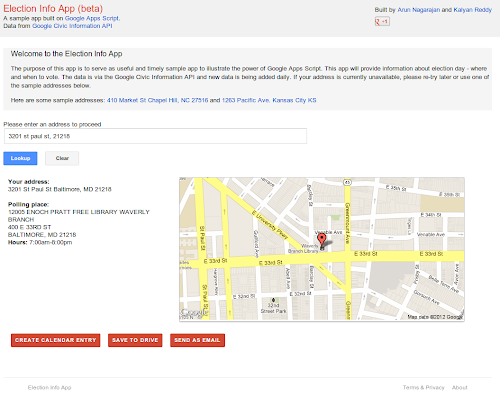
Election Info is a sample application built using Apps Script that can:
- Query the Google Civic Information API to find polling locations and hours using client side JavaScript and AJAX.
- Display polling information using
HtmlServicewith jQuery for a clean effective UI. - Generate static maps via
UrlFetchand theMapsServiceto show polling maps and directions. - Create a calendar event for election day with your polling location using the Calendar service.
- Generate a bring-along document with poll directions and hours using the Document service.
- Send you an email with a summary with your polling place information using the Gmail service.
- Store your previous searches in
UserPropertiesso it will remember your likely home address the next time you launch the app.
As you can see, this is a comprehensive sample app that is useful while also highlighting key Apps Script capabilities.
Install the app from the Chrome Web Store. Check back soon as we will be writing a blog post with details and sample code on how the sample was built.
 | Arun Nagarajan profile | twitter Arun is a Developer Advocate on Google Apps Script. Arun works closely with the community of partners, customers and developers to help them build compelling applications on top of Google Apps using Apps Script. In the past, he spent over 9 years building and designing platforms and infrastructure for enterprise mobile applications.. Arun is originally from the Boston area and enjoys basketball and snowboarding. |
Monday, March 9, 2015
Automatically Generate Maps and Directions with Google Apps Script
Following up on our recent post about the new Doc List capability in Google Apps Script, we thought we’d take a moment to look a little more closely at another new feature in Apps Script - integration with Google Maps. Google Maps has had an API for quite some time, but now we’ve made it very easy to generate customized maps and driving directions straight from a script.
A mail merge is often used to automate some of the drudgery involved in sending invitations to a large number of people. With the new Apps Script Maps Service you can easily add a map image to the email, and even add a marker showing the event location.
While that’s nice, it’s hardly a time saver - why write code to generate the same image repeatedly? A much more useful feature is generating a custom map for each guest, along with personalized driving directions. We’ve made a spreadsheet template that includes just such a script - it’s available here.
Let’s look at a short code snippet that illustrates the calls required to generate a map image and add a marker at the start and end addresses:
function getMap (start, end) {
// Generate personalized static map.
var directions = Maps.newDirectionFinder()
.setOrigin(start)
.setDestination(end)
.getDirections();
var map = Maps.newStaticMap().setSize(500, 350);
map.setMarkerStyle(Maps.StaticMap.MarkerSize.MID,
"red", null);
map.addMarker(start);
map.addMarker(end);
return map.getMapUrl()
}
Running the function with start and end set to Google, San Francisco and Google, Mountain View, we get a link to the following image:

Along with generating maps images, the Maps feature can also find directions, retrieve elevation data and even perform some geocoding operations. Please note that any data returns by these APIs should not be used without displaying an associated map image - see the Google Maps API Terms of Service for more details.
Posted by Evin Levey, Google Apps Script Product Manager